
Results and report cards
Termly report cards are generated automatically from the CA and examination marks, attendance and remarks recorded during the term.
Choose your report-card template
- Go to Exam & Performance → Termly Report Cards.
- Click Template and pick one of the designs (classic tabular, modern, CA dossier with student photo, and others). The preview uses a sample student from your school.
- Save. The template applies to all classes; you can change it at any time.
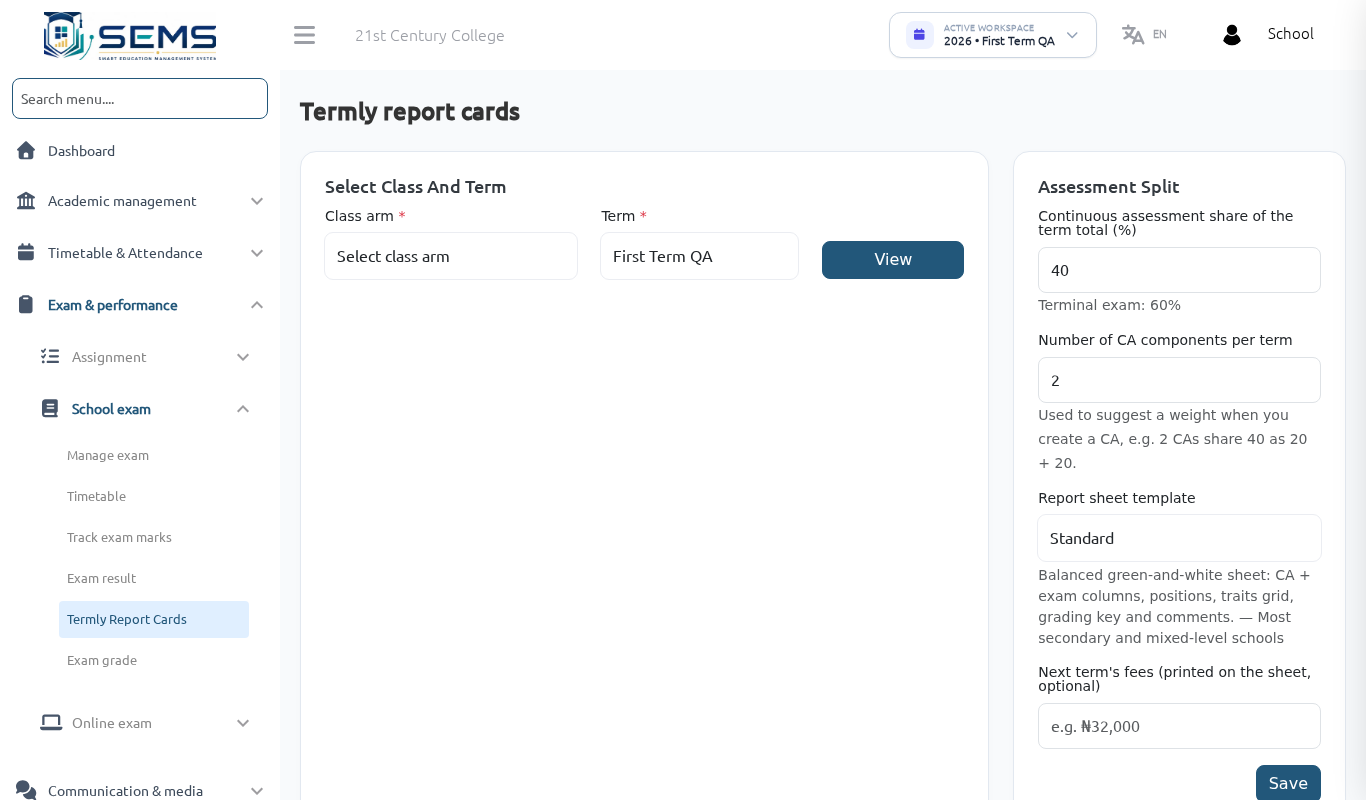 Selecting a termly report card template.
What appears on the report card
- School crest, name, address and motto (from Settings → General settings).
- Student name, admission number, class and arm, photo (if uploaded), session and term.
- For each subject: CA marks, examination mark, total, grade, position in subject and remark.
- Overall total, average, class average, position in class and number in class.
- Attendance: days school opened, present, absent, on approved leave.
- Affective and psychomotor traits (punctuality, neatness, handwriting, sports…), rated 1–5.
- Class teacher's remark, principal's remark and signatures, next-term begins date.
Remarks and traits
Class teachers enter remarks and traits for their arm (see the Teacher manual). As administrator:
- Open Termly Report Cards, choose session, term and class arm.
- Click a student's Remarks & traits to enter or edit the class teacher's remark, principal's remark and trait ratings.
- Where SEMS AI is enabled, an AI suggested badge offers a draft remark based on the student's results — click Use, edit if needed and save. Nothing is written until you save.
Preview, print and download
- On Termly Report Cards choose the session, term and class arm.
- Click Preview for one student or Download all (PDF) for the whole arm — one PDF with a page per student, ready to print on A4.
- Print on the school's letterhead paper if the template is designed for it, or on plain paper (the crest and colours are printed).
Releasing results to parents
Report cards are visible in the portal and app only when the term's examination is Published under Manage exam. Parents then see the report card under Results and can download the same PDF.
Holding results for unpaid fees: keep the examination unpublished, print report cards for students who have cleared, and publish when appropriate. SEMS does not automatically block a parent's view based on fees.
Corrections after publishing
If a mark is corrected after publishing, the report card updates automatically on the next view or download. Tell affected parents to re-download.
Positions and ties
Positions are calculated on the total marks across subjects taken. Students with the same total share the same position (e.g. two students at 3rd, the next at 5th).