
Security and two-factor verification
The School Administrator account can see and change everything about your school, including student data and fees. These steps keep it safe.
Two-factor verification (2FA)
With 2FA on, signing in requires your password and a six-digit code sent to your email address. 2FA is required for School Administrators and recommended for bursars and exam officers.
Enable it for yourself
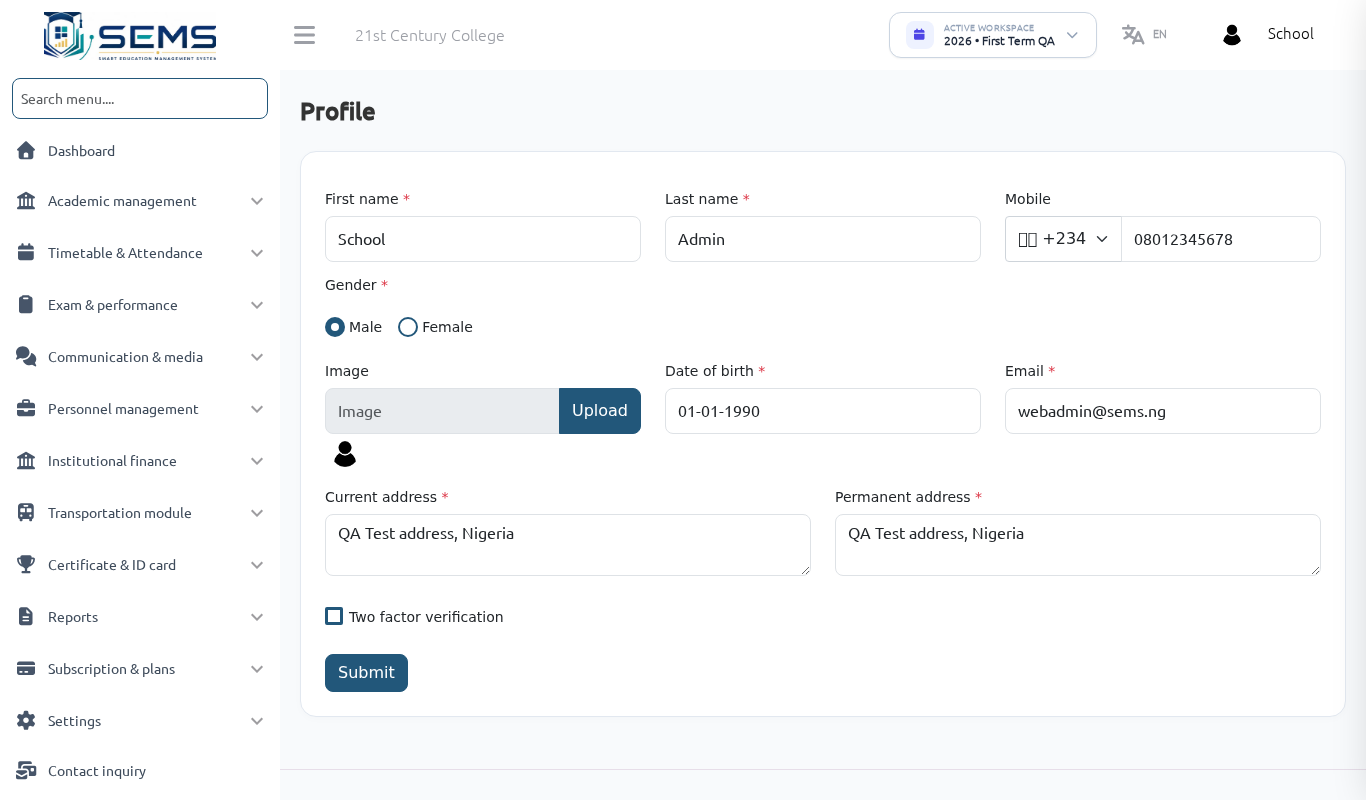
- Click your avatar (top-right) → Profile.
- Tick Two-factor verification and save.
- Sign out and sign in again: enter your password, then the code from your email. Codes expire after a few minutes; use Resend code if needed.
Require it for all staff
Under Settings → System settings, switch Two-factor verification on for the school. Every staff member is asked for a code at their next sign-in.
 Entering the verification code.
Make sure each staff member's email address in their record is correct and one they can access — the code goes there.
Passwords
- Use at least 10 characters mixing letters, numbers and symbols; do not reuse the password from other websites.
- Never share the administrator login. Create a staff account with a role for each person instead (see Teachers, staff and roles).
- Change the administrator password when an ICT officer or secretary who knew it leaves the school.
Roles with least privilege
Give staff only the permissions their job needs. A bursar does not need Students → edit; a teacher does not need Fees. Review roles under Personnel Management → Role & Permission at the start of each session.
Audit Log
Settings → Audit Log records who did what and when: sign-ins, changes to settings, roles, fees, marks publication, SEMS AI use. Filter by user or date. Use it to investigate a disputed mark or payment.
Sessions and devices
- Sign out on shared computers (avatar → Sign out).
- Staff who leave should be made inactive the same day.
If a password is exposed
- Change the password immediately (Profile).
- Check the Audit Log for unfamiliar activity.
- Reset passwords of any staff account that may also be affected.
- Email support@sems.ng if you see changes you did not make.
Data protection
SEMS complies with the Nigeria Data Protection Regulation (NDPR). Your school's data is stored in its own database in a secure data centre, backed up nightly. Parents can make data requests through the Privacy page on your website; forward any request you receive to support@sems.ng.