
Custom domain
Your website works at https://<school>.schoolsite.ng from day one. If the school owns a domain, you can also serve the website, Staff Login and Student & Parent portal on it.
Before you start
- You need access to the domain's DNS settings at the registrar (e.g. Whogohost, Qservers, GoDaddy, Namecheap) or ask your IT provider.
- Decide the exact address: most schools use
www.<domain>— SEMS also redirects the bare domain to it.
Step 1 — enter the domain
- Go to School website → Custom Domain.
- Type the domain (e.g.
www.stmarysyola.sch.ng) and click Save. - SEMS shows the DNS records to create.
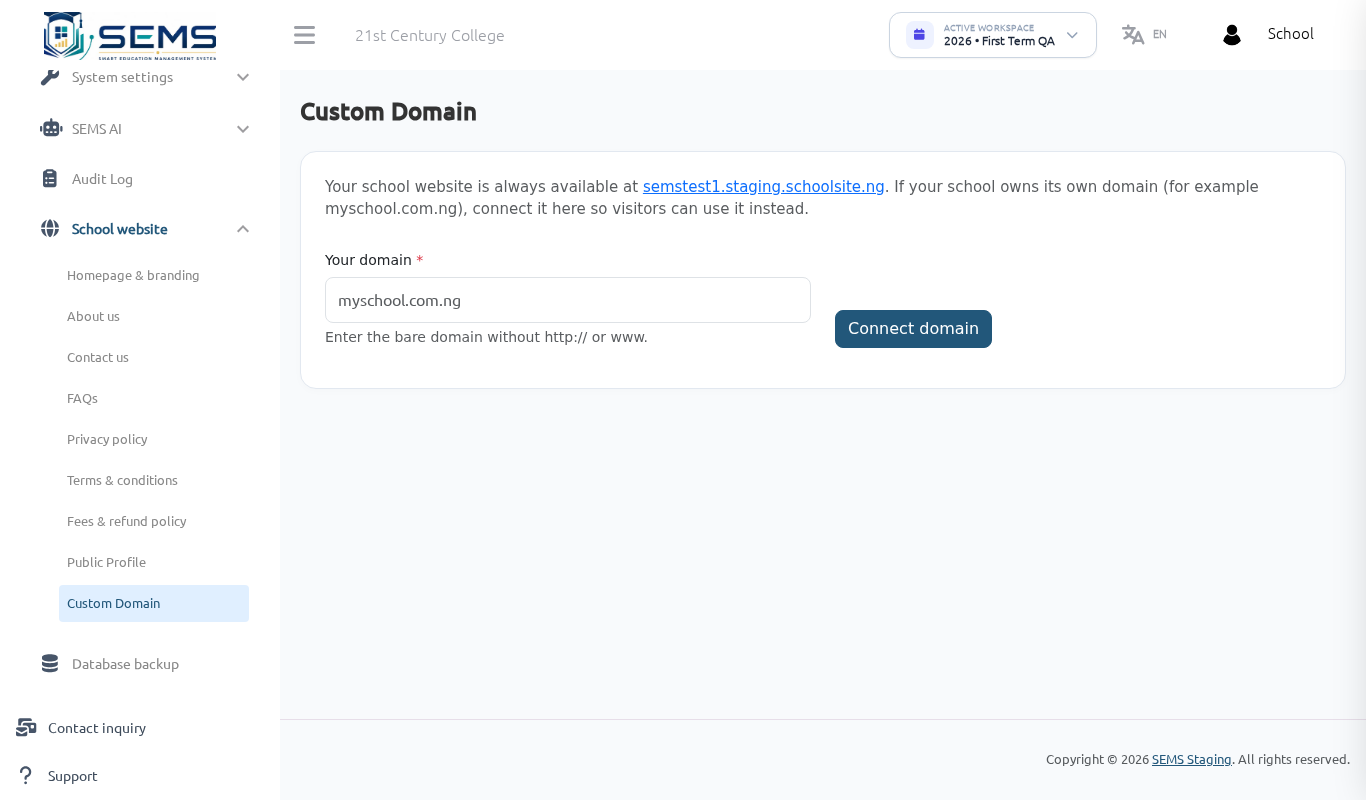 Custom domain set-up with DNS instructions.
Step 2 — create the DNS records
At your registrar, add the records exactly as shown on the page:
| Type | Name / Host | Value |
|---|---|---|
| CNAME | www |
<school>.schoolsite.ng |
| A | @ (bare domain) |
the SEMS IP address shown |
Save the records. DNS changes can take from a few minutes up to 24 hours to spread.
Step 3 — verify
Return to Custom Domain and click Verify. When the records are found, the status changes to Verified and SEMS issues an HTTPS certificate automatically (usually within 10 minutes). Once the status shows Active, the site is live on your domain, and <school>.schoolsite.ng redirects to it.
Using the domain
- Website:
https://www.<domain> - Staff Login:
https://www.<domain>/login - Student & Parent Login:
https://www.<domain>/portal/login - The mobile app keeps working — no change needed.
Removing or changing the domain
Click Remove on the Custom Domain page. The site returns to <school>.schoolsite.ng immediately. To change to another domain, remove the current one and start again.
Troubleshooting
- Verification fails: check the record name (
www, notwww.<domain>) and that there is no conflicting old A/CNAME record for the same name. Wait an hour and try again. - "Not secure" warning: the certificate may still be issuing — wait 10–15 minutes and reload.
- Domain expired: renew it with your registrar; SEMS cannot renew domains for you.