
Teachers, staff and roles
Everyone who works in the school and needs SEMS signs in through Staff Login. What they can see is controlled by their role.
Add a teacher
- Go to Academic Management → Teacher → Manage teacher and click Add.
- Fill in name, gender, email, phone, qualification and date of joining. The email is the teacher's login.
- Save. The teacher receives an email with a temporary password (or you can share the password shown on screen).
- Assign the teacher to class arms and subjects — see Classes, arms and subjects.
To add many teachers at once use Bulk upload: download the CSV template, fill one teacher per row, upload it and correct any rows flagged in red.
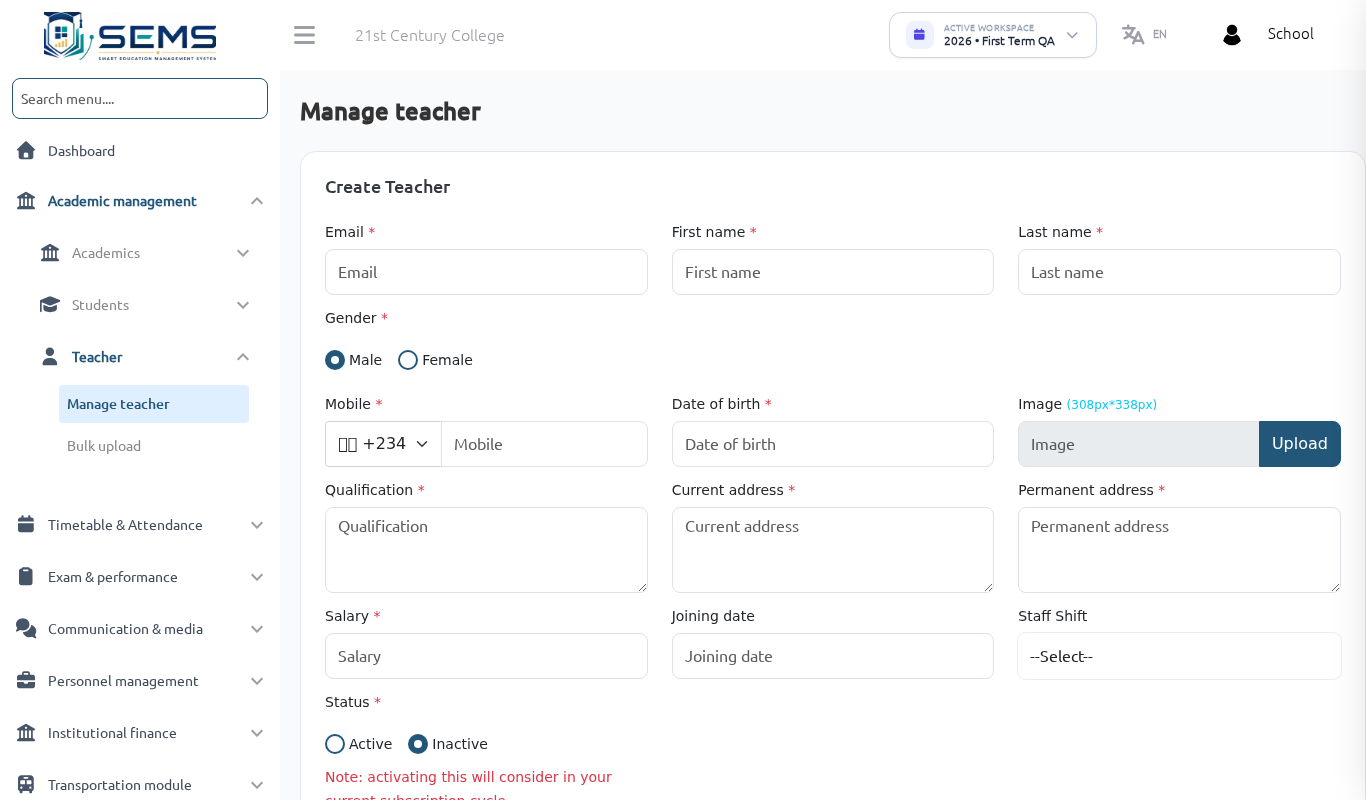 Manage teacher.
Roles and permissions
Non-teaching staff need a role first.
- Go to Personnel Management → Staff Management → Role & Permission and click Add role.
- Name the role (e.g.
Bursar,Vice Principal,Secretary,Librarian,Exam Officer). - Tick only the permissions that role needs. Examples:
- Bursar: Fees (list, manage, collect), Fees Transaction Logs, Expense, Income, Payroll.
- Exam Officer: Offline Exam, Exam Result, Termly Report Cards, Exam Reports.
- Secretary: Students (list, create, edit), Admission Inquiries, Announcement.
- Save. Staff with this role see only the menus their permissions allow.
Add non-teaching staff
- Go to Personnel Management → Staff Management → Staff and click Add.
- Fill in details and choose the role created above. The email is the login.
- Save; the staff member receives their temporary password by email.
Staff attendance, leave and tasks
- Personnel Management → Staff Attendance: mark daily attendance, view today's list and monthly reports. QR attendance settings let staff check in by scanning a QR code at the gate.
- Personnel Management → Staff Leave: staff apply for leave in their panel or app; the School Administrator approves or rejects under Leave, and Leave report summarises the month.
- Personnel Management → Tasks: assign tasks with deadlines and track completion.
Payroll
Institutional Finance → Payroll: set salary structure, allowances and deductions per staff member under Payroll setting, generate monthly payroll under Manage payroll, and staff download Payroll slips from their panel.
Deactivating a staff member
Edit the teacher or staff member and switch Status to inactive. They can no longer sign in, but their historical records (marks entered, attendance taken) are kept. Do not delete staff who have entered results.
Passwords
- Staff reset their own passwords from the Forgot password link on the Staff Login page.
- Administrators can set a new password by editing the teacher or staff record.