
Student & Parent portal and the SEMS app
Parents and students never use the Staff Login. They have two options, both showing the same information:
- Web portal:
https://<school>.schoolsite.ng/portal/login— the Student & Parent Login link on your website. - SEMS mobile app (Android): one app for parents, students, teachers and staff.
What parents and students see
| Section | Content |
|---|---|
| Dashboard | Today's timetable, attendance summary, unread announcements, fee balance. |
| Timetable | Weekly class timetable. |
| Attendance | Daily record and monthly summary; apply for leave. |
| Assignments | Homework set by teachers; submit work and see marks. |
| Results | CA and exam marks per term (once published) and the report card PDF. |
| Fees | Fees due, payments made, receipts, Pay now with Paystack. |
| Announcements | School and class notices with attachments. |
| Profile | Personal details, change password. |
Parents with more than one child switch between them from the top of the page.
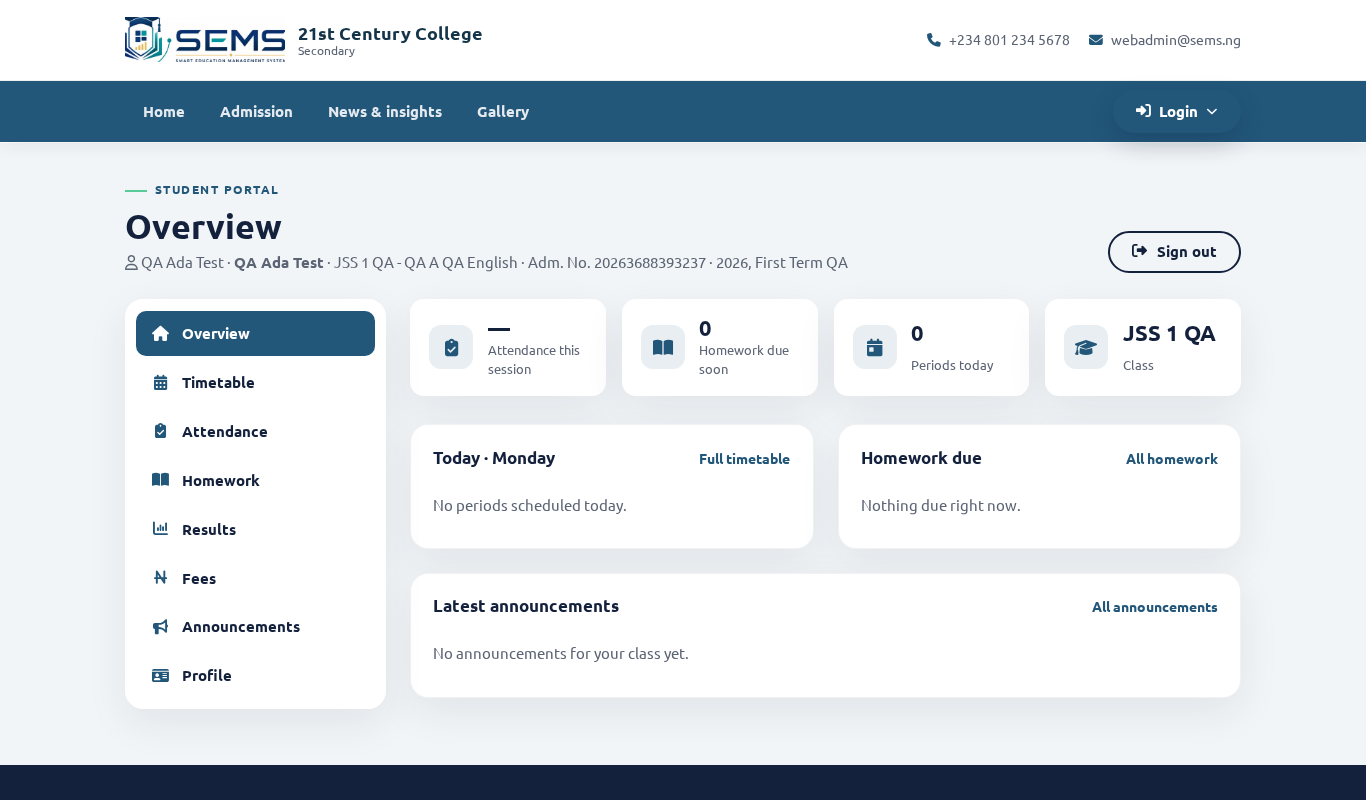 The Student & Parent portal.
Logins
- Student: admission number + password.
- Parent/guardian: email address or mobile number + password.
Initial passwords are created at admission and emailed to the guardian; they also appear on screen when you admit the student.
Helping with passwords
- Student: Academic Management → Students → Students reset password — pick the student, generate a new password and share it with the parent.
- Parent: Academic Management → Students → Guardian → edit → set a new password.
- Parents can also use Forgot password on the portal login page if their email address is on record.
The SEMS mobile app
- Ask parents to download SEMS from the Download our app section of your school website (Android APK; Play Store listing to follow).
- On first use they enter your school code (shown under Settings → General settings), then their usual portal login.
- Teachers and staff sign in to the same app with their staff email; the app shows the screens for their role.
See the Student & Parent manual — mobile app for the parent-facing instructions you can share.
Turning portal features on or off
Under Settings → System settings you can hide sections that your school does not use (for example Online exams or Transport). Hidden sections disappear from the portal and app.
Communicating the login details
A short note to send parents at the start of the session:
Dear parent, your child's records are now on SEMS. Visit www. and click Student & Parent Login, or install the SEMS app. Parent login: your email/phone and the password sent to you. Student login: admission number. Contact the school office if you need your password reset.