
SEMS AI Guide and Admin Copilot
SEMS AI is the assistant inside the admin panel. It is switched on for your school by SEMS central; you can switch it off or restrict it under SEMS AI → Settings & usage.
Opening the assistant
Click the SEMS AI button at the bottom-right of any page. The panel opens beside your work with suggested prompts for the page you are on.
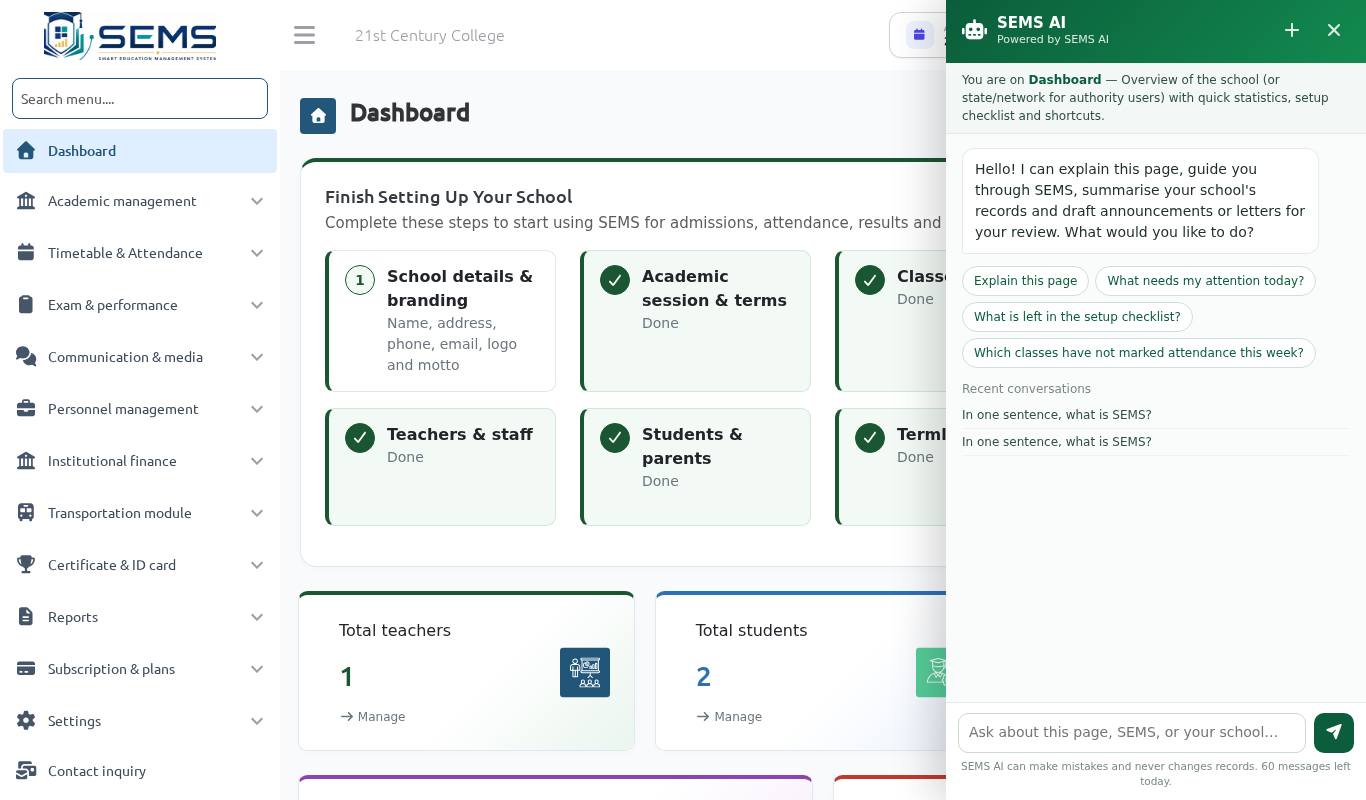 The AI Guide panel on the dashboard.
What it can do
| Capability | Example | Who |
|---|---|---|
| Guide | "How do I publish Second Term results?" — answers from these manuals and explains the current page. | Administrators, teachers |
| Knowledge | "What is our late-fee policy?" — answers from documents your school has approved. | Administrators, teachers |
| Admin Copilot | "What needs attention today?" — attendance not marked, results not entered, timetable clashes, outstanding fees (totals only). Read-only. | Administrators (fees: administrators only) |
| Drafts | "Draft an announcement about the PTA meeting on Saturday." — saved under Drafts for review; nothing is sent automatically. | Administrators, teachers |
| Teacher Copilot | Lesson plans, assessment questions with marking guides, class result analysis, report-card remark suggestions. | Teachers (own classes), administrators |
| Data questions | "How many students are in JSS 2?" — answered from a fixed, audited catalogue of school queries. | Administrators |
What it cannot do
- It cannot enter, change or publish marks, record payments, send announcements or change settings. All of these remain human actions in SEMS.
- It does not list individual fee defaulters unless you ask about a specific student.
- It does not do students' homework or exams.
Adding your school's documents (knowledge base)
- Go to SEMS AI → Assistant & knowledge.
- Upload or paste documents parents and staff ask about: school handbook, fee policy, uniform rules, academic calendar, exam rules.
- Mark each document Approved. Only approved documents are used in answers, and only within your school.
Drafts for review
Every letter, memo, announcement, lesson plan or assessment the assistant writes is saved under SEMS AI → Drafts for review with the name of the person who requested it. Edit, approve and copy the text where it is needed; delete drafts you do not want.
Settings, usage and audit
- SEMS AI → Settings & usage: switch the assistant on/off for your school, give it a name (e.g. "St Mary's Assistant"), add style notes (tone, sign-off), and see monthly usage — messages, users and drafts.
- Every question and answer is logged against the user in the Audit Log (Settings → Audit Log), so usage is accountable.
- SEMS central can also disable capabilities platform-wide.
Good questions to ask
- "Which class arms have not marked attendance today?"
- "Which subjects in SSS 2 have no marks for First Term Examination?"
- "Summarise outstanding fees per class for this term."
- "Write a lesson plan on fractions for Primary 5."
- "Suggest class-teacher remarks for JSS 1 A."