
Continuous assessment and exams
SEMS follows the Nigerian termly assessment format: continuous assessment (CA) during the term plus an end-of-term examination, totalling 100 marks per subject, with a grade (A1–F9 for senior secondary, or A–F for junior and primary), class position, class average and remarks on the report card.
1. Define the grading scale
- Go to Exam & Performance → Offline Exam → Exam grade.
- Add each grade with its mark range and remark, for example:
| Marks | Grade | Remark |
|---|---|---|
| 75–100 | A1 | Excellent |
| 70–74 | B2 | Very good |
| 65–69 | B3 | Good |
| 60–64 | C4 | Credit |
| 55–59 | C5 | Credit |
| 50–54 | C6 | Credit |
| 45–49 | D7 | Pass |
| 40–44 | E8 | Pass |
| 0–39 | F9 | Fail |
You can keep a separate simpler scale (A–F) for primary classes.
2. Create the term's assessments
- Go to Exam & Performance → Offline Exam → Manage exam and click Add.
- Name the assessment (e.g.
First Term CA 1,First Term CA 2,First Term Examination), choose the session, term and the classes it applies to. - Leave Published off until results are ready for parents.
- Repeat for each CA and the examination. A typical structure is CA 1 (10), CA 2 (10), CA 3 (20) and Examination (60).
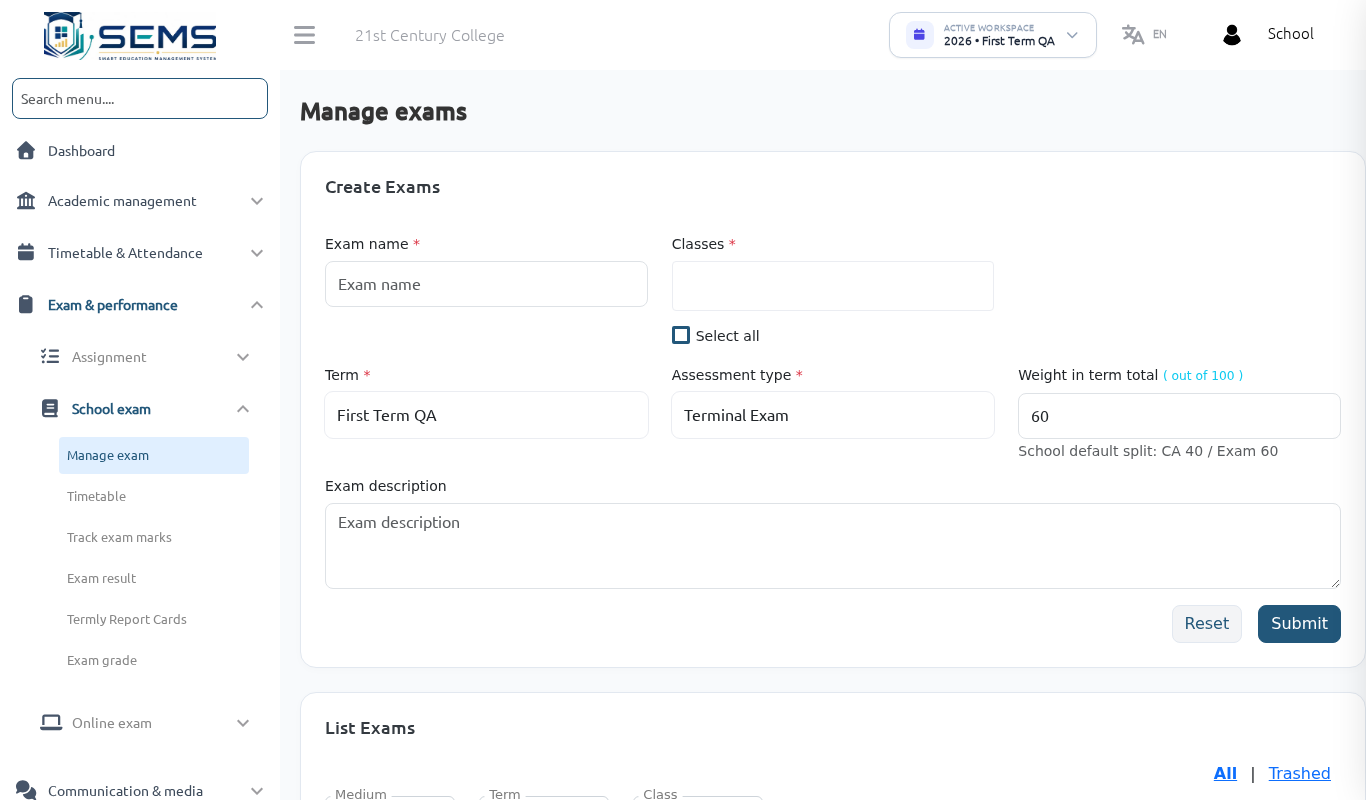 Assessments for the term.
3. Exam timetable, totals and pass marks
Under Manage exam → Exam timetable, for each class add the subjects with date, start/end time, total marks and passing marks. Totals here determine the weight of each assessment on the report card. The timetable is shown to students and parents.
4. Mark entry
Teachers enter marks under Offline Exam → Upload exam marks for their subjects (see the Teacher manual). Administrators can enter or correct marks for any subject, or use Bulk upload exam marks with the CSV template.
Track exam marks shows, per assessment and class, which subjects still have no marks — use it in the last week of term to chase outstanding entries. SEMS AI can also list "results not yet entered" for you.
5. Publish results
When all marks are in and checked:
- Open Manage exam, edit the examination and switch Published on.
- Results and report cards become visible in the parent/student portal and app immediately.
To hold results back (for example until fees are cleared), leave Published off and generate report cards internally first.
Exam results and reports
- Exam & Performance → Exam Result: result sheet per class arm and assessment, with totals, grades and positions.
- Exam Reports: subject averages, pass rates and comparisons across arms.
- Student Reports: one student's results across terms.
Online exams
Exam & Performance → Online exam creates objective tests students take in the portal or app: set duration, marks per question and add questions singly or by Add bulk questions. Results are auto-marked and can be included in CA.
Assignments
Homework set by teachers lives under Exam & Performance → Assignment; administrators can see all assignments and submissions per class.