
School website
Every school on SEMS has a public website at https://<school>.schoolsite.ng (or your own domain). It is built from the content you enter under School website in the sidebar; changes appear on the site immediately.
Homepage & branding (Web Settings)
Go to School website → Homepage & branding. The page is organised as a wizard of tabs:
- Branding — horizontal logo, favicon, school colours and the theme.
- Hero banner — style (Standard or Classic), up to three banner images, headline, sub-headline and the credentials strip (e.g. "Approved by Ministry of Education · WAEC/NECO centre").
- About / Welcome — welcome message, proprietor's or principal's message and photo, mission, vision and core values. Publishing About completes the setup checklist item.
- Programmes & highlights — the levels you offer (Nursery, Primary, Junior Secondary, Senior Secondary) with a short description each, plus highlights such as boarding, ICT lab, transport.
- Admission — call-to-action text and the link parents follow to apply or enquire.
- Contact — address, phones, email, WhatsApp, map location, office hours, social links.
- Download our app — shown automatically with the SEMS app links.
Click Save on each tab.
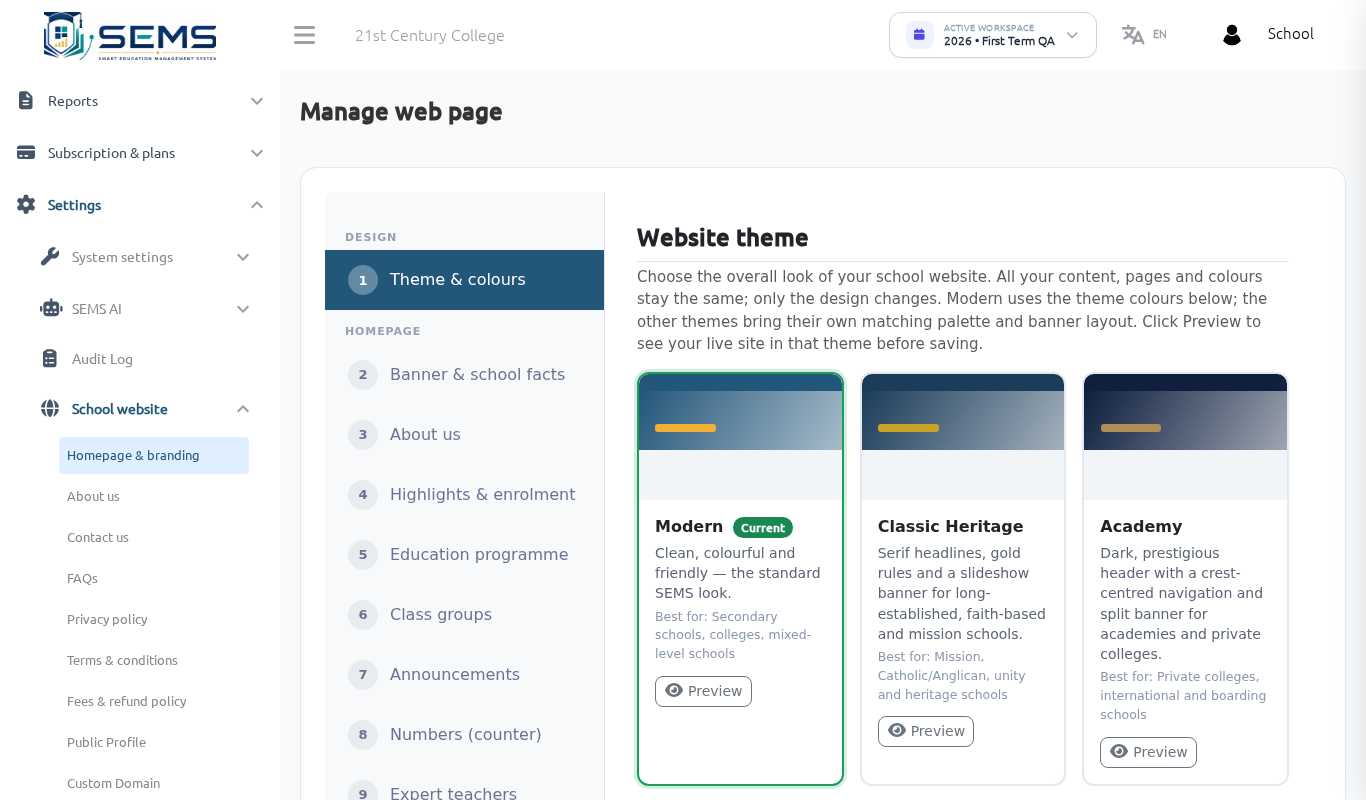 Homepage & branding.
Choose a theme
Under Branding → Theme, pick one of the six website designs (Modern, Classic, Academy, Bright, Minimal, Bold). Click Preview to see your own content in each theme before saving.
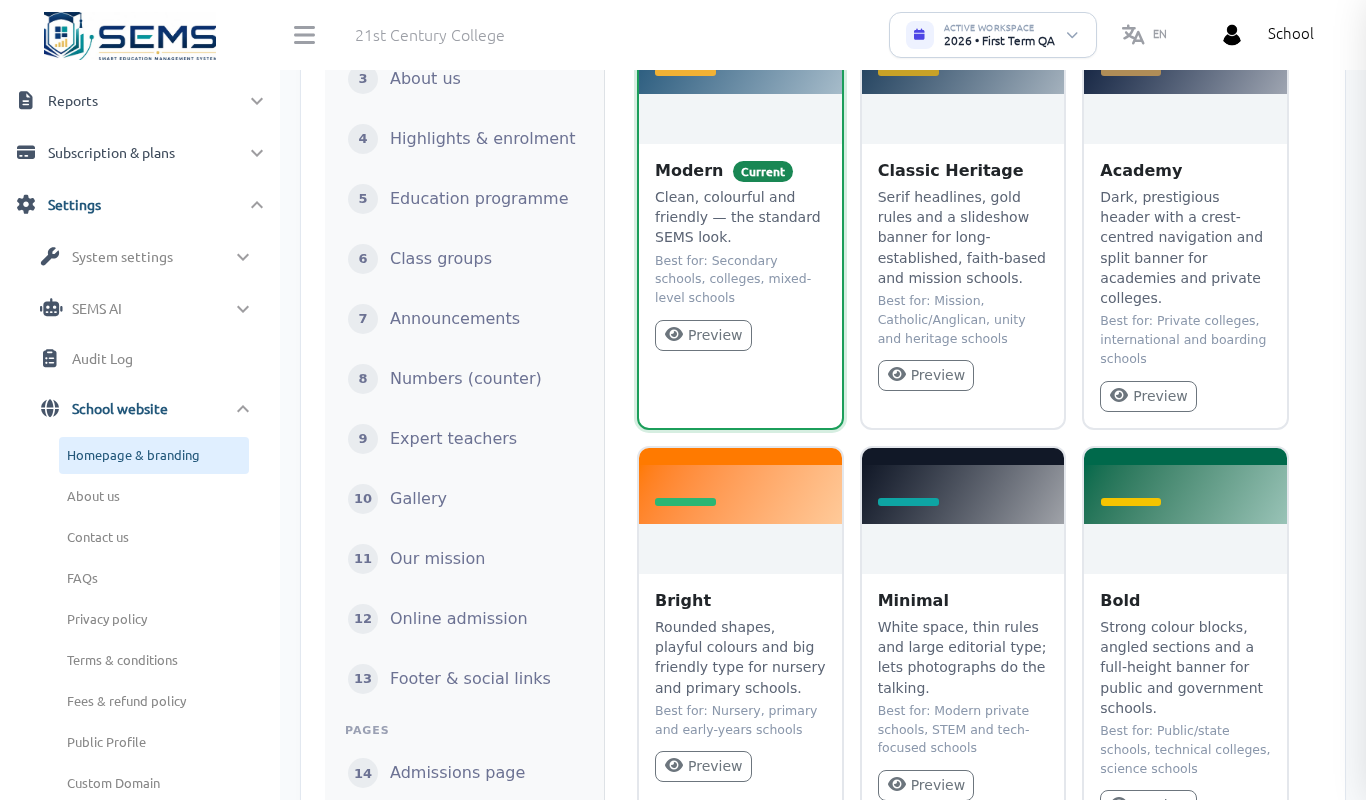 Website theme selection with live preview.
Feature sections and FAQs
- School website → Feature sections: add extra homepage blocks (e.g. "Why choose us", facilities) with icon, title and text.
- School website → FAQs: questions parents often ask (admission process, fees, uniforms). Shown on the website's FAQ page.
News, events and gallery
- Communication & Media → Sliders and Gallery: photo albums with captions.
- News and Events are published from School website → News / Events with a cover image, date and body text. Upcoming events also appear in the portal calendar.
Staff Login and Student & Parent Login
The website header, homepage and footer always show two separate links: Staff Login (/login) and Student & Parent Login (/portal/login). These cannot be removed, so parents always know where to sign in.
Legal pages
Privacy Policy, Terms and Fees Policy pages are generated for your school and linked in the footer. You can add school-specific text under Settings → Privacy policy / Terms & condition / Fees policy.
Search engines and sharing
The site generates a sitemap and page descriptions automatically. Add a short SEO description under Homepage & branding → Branding to control the text Google and WhatsApp show when the site is shared.
Custom domain
To use your own domain (e.g. www.stmarysyola.sch.ng) see Custom domain.