
Fees and payments
Fees in SEMS are set per class per term. Parents see what is due in the portal and app, can pay online with Paystack, and the bursar records cash, transfer and POS payments.
1. Create fee types
- Go to Institutional Finance → Fees → Fees Type.
- Add each item your school charges:
Tuition,PTA levy,Development levy,Books,Uniform,Boarding,Transport,Excursion, etc.
2. Set the amount per class per term
- Go to Institutional Finance → Fees → Manage Fee and click Add.
- Choose the session, term and class, then tick the fee types that apply and enter the amount (₦) for each.
- Set the due date. Tick Include in installment if you allow part payment.
- Save. Repeat for each class and term (you can duplicate a previous term's fees to save time).
Optional fees (e.g. Excursion, Extra lessons) are created under Optional Fee; parents choose them in the portal.
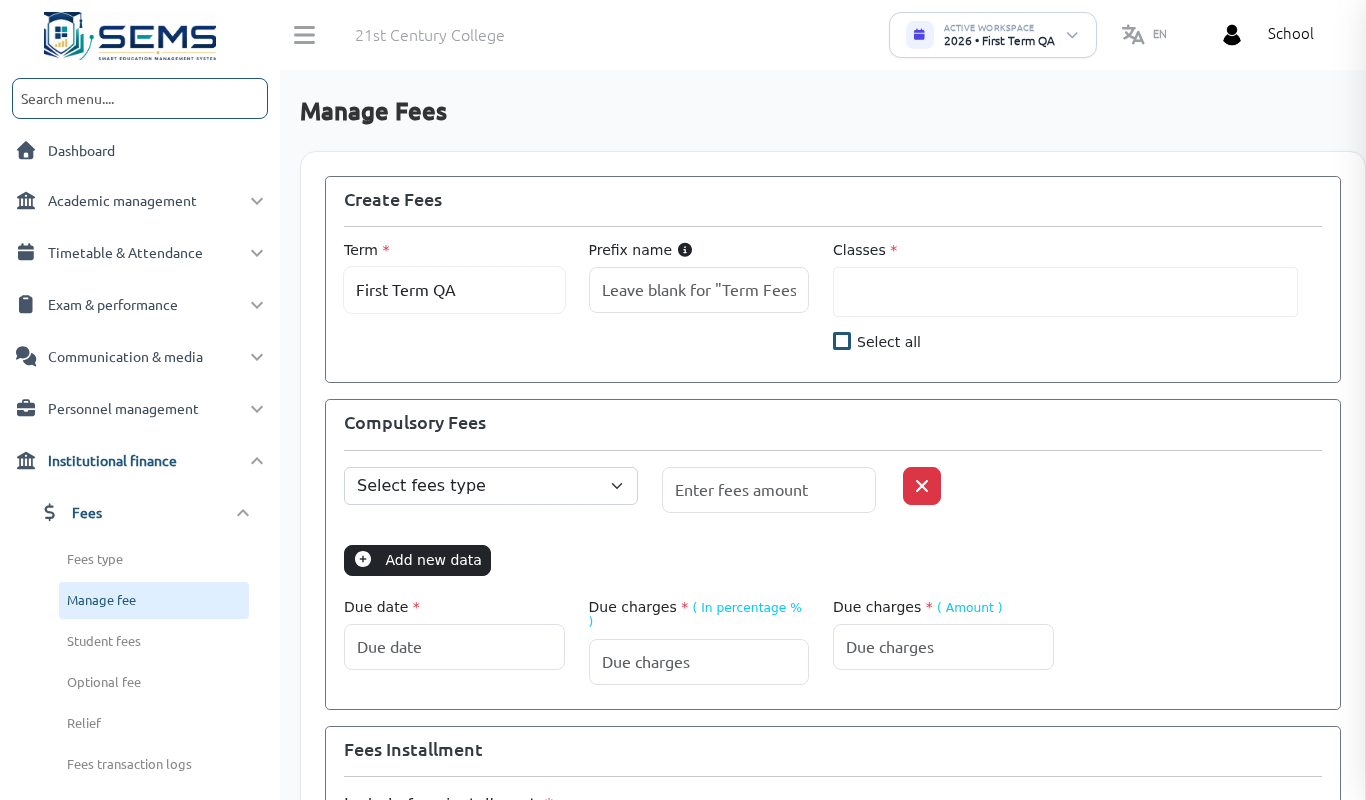 Fees for a class and term.
3. Record a payment (cash, transfer, POS)
- Go to Institutional Finance → Fees → Student Fees.
- Filter by class arm and term; each student shows Paid, Part-paid or Unpaid with the balance.
- Click Pay next to the student, enter the amount, payment mode, date and the bank reference or receipt number, then save.
- Print or download the receipt (branded with the school crest) and hand it to the parent; a copy is available to the parent in the portal.
4. Online payment with Paystack
- Open a Paystack business account for the school at paystack.com and complete their verification.
- In SEMS, go to Settings → Payment Settings, choose Paystack, paste the public key and secret key from your Paystack dashboard, and save.
- Parents can now pay from Fees in the portal or app by card, bank transfer or USSD. Payments settle directly into the school's Paystack account — SEMS never holds school funds.
Every online payment is recorded automatically and appears under Fees Transaction Logs.
Discounts and scholarships
Institutional Finance → Fees → Relief: give a percentage or fixed reduction to a student for a term (scholarships, staff children, siblings). The reduced amount is what the parent sees.
Following up outstanding fees
- Student Fees filtered by Unpaid / Part-paid gives the defaulter list per class.
- Reports → Financial summary report gives totals collected and outstanding for the term.
- SEMS AI can summarise "how much is outstanding per class" for administrators; it does not record payments.
- Use Communication & Media → Announcement to send a fee reminder to a class arm, or the AI Drafts to prepare a polite reminder letter.
Other finance
- Income and Expense: record non-fee income (hall rental, donations) and school expenses by category, with dashboards.
- Payroll: see Teachers, staff and roles.
Your SEMS subscription
Your school's own SEMS plan (Free profile or a paid plan) is managed under Subscription in the sidebar: current plan, renewal date, invoices, and upgrade/renew by Paystack in Naira.