
Classes, arms and subjects
Before admitting students you need the class structure: classes (Primary 1, JSS 2, SSS 3…), their arms (also called sections — A, B, Gold, Blue…) and the subjects taught in each class.
Create arms (sections)
- Go to Academic Management → Section.
- Add the arm names your school uses, e.g.
A,B,CorGold,Blue,Red. Arms are shared across classes, so create each name once.
Create classes
- Go to Academic Management → Class.
- Click Add class, type the class name (e.g.
JSS 1), choose the medium (English) and tick the arms that exist for this class. - Optionally choose a stream for senior classes (Science, Arts, Commercial) and a shift (Morning/Afternoon) if the school runs shifts.
- Repeat for every class: Nursery 1–2, Primary 1–6, JSS 1–3, SSS 1–3 (only the levels your school offers).
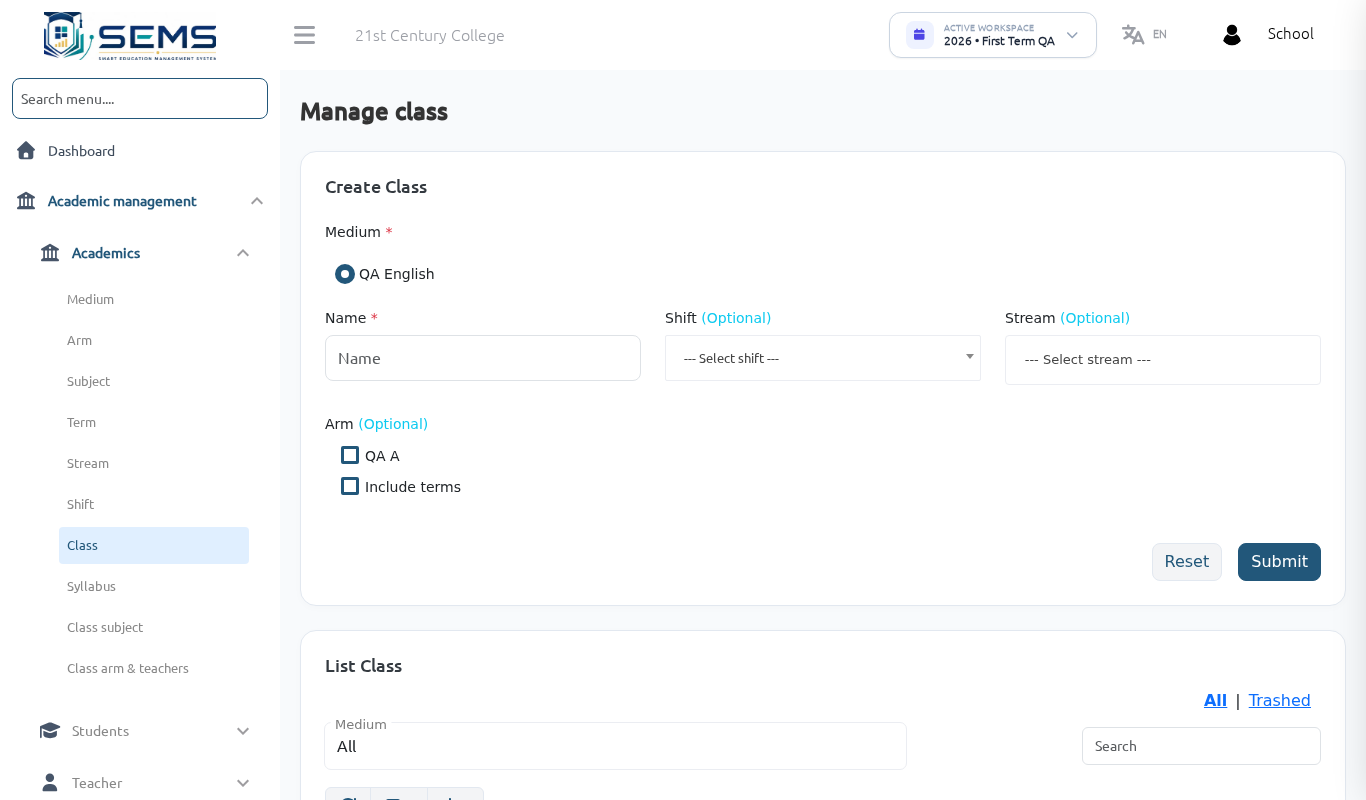 Classes with their arms.
Create subjects
- Go to Academic Management → Subject.
- Add each subject once with a short code (e.g.
MTHfor Mathematics,ENGfor English Language,BSTfor Basic Science and Technology) and its type — Theory or Practical.
Attach subjects to classes
- Go to Academic Management → Class Subject.
- Select a class, tick the core (compulsory) subjects for that class and save.
- For senior classes, use Assign Elective Subject to create elective groups (e.g. "choose one of Further Mathematics, Agricultural Science, Economics") and set how many a student must take.
Assign class teachers and subject teachers
- Class Section & Teachers — for each class arm, choose the class teacher (form master/mistress). Class teachers can mark attendance, see all results for their arm and write class-teacher remarks.
- Class Subject → Subject teacher — for each class arm and subject, choose the subject teacher. Subject teachers enter marks only for their subjects.
Tip: a teacher can be class teacher of one arm and subject teacher in many arms at the same time.
Changing the structure later
- Renaming a class or subject updates everything that uses it.
- Deleting a class is only possible when no students are assigned to it; move students first with Students → edit or Transfer Student.
- Adding an arm mid-session is fine; existing students are not affected.