
Announcements and communication
Announcements
Announcements are the main way to reach parents and students. They appear in the portal, the SEMS app and (if you choose) on your school website.
- Go to Communication & Media → Announcement and click Add.
- Enter a title and the message; attach a file (PDF, image) if needed — e.g. the term calendar or a fee schedule.
- Choose the audience: whole school, specific class arms, or staff only.
- Save. Recipients see it immediately in the portal and app, and receive a push notification if the app is installed.
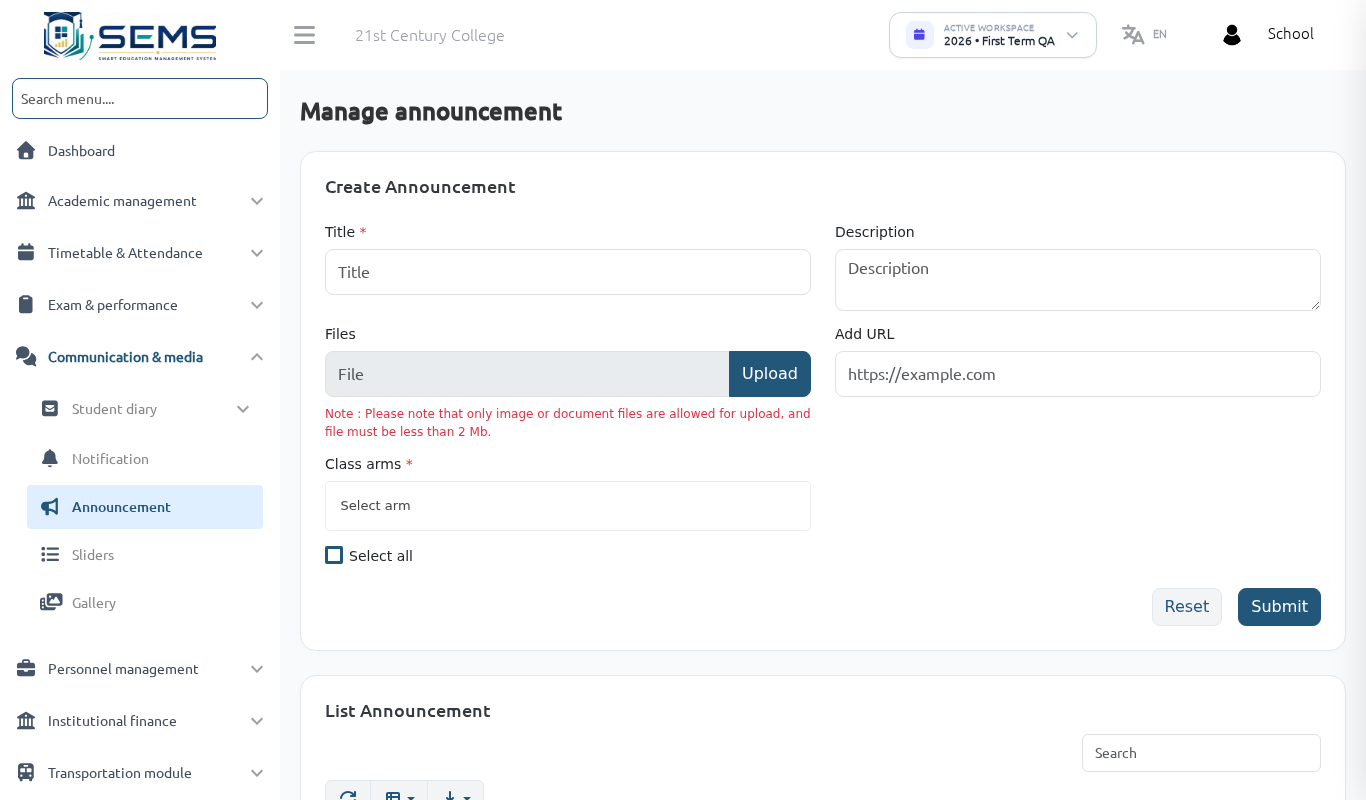 Publishing an announcement.
Good practice: one clear topic per announcement, a date in the title for time-bound notices ("PTA meeting — Sat 14 Feb"), and attach the full document rather than pasting long text.
Push notifications
Communication & Media → Notification sends a short push notification to app users without creating an announcement (e.g. "School closes at 12 noon today"). Requires the notification settings under Settings → Notification settings to be configured — this is done for you when your school is set up.
News, events and gallery on the website
Public news stories, events and photo albums are managed under School website (see School website). Use announcements for internal notices and news/events for the public.
Student diary
Teachers write daily notes about a student (behaviour, health, homework) under Student diary; parents see them in the portal. Diary categories are set under Communication & Media → Diary category.
Contact enquiries
Messages sent through the Contact form on your school website appear under Communication & Media → Contact Inquiry. Reply by email or phone and mark them as handled.
Letters and memos with SEMS AI
Where SEMS AI is enabled, ask the assistant to draft an announcement, letter to parents or memo. Drafts are saved under SEMS AI → Drafts for review; nothing is sent until you copy the text into an announcement or letter yourself. See SEMS AI Guide.
Email and WhatsApp
- Settings → Email configuration lets the school send from its own email address (optional; SEMS sends from its platform address by default).
- WhatsApp links on the website (School website → Contact) open a chat with the school's number.