
Students and parents
Each student record in SEMS holds personal details, class and arm, a guardian (parent) and everything recorded during the student's time in the school — attendance, marks, report cards and fees.
Admit a single student
- Go to Academic Management → Students → Student admission.
- Fill in the student's details: name, gender, date of birth, class and arm, admission date, photo (optional), and any additional fields your school has configured.
- Admission number: leave blank to let SEMS generate one from the session prefix (e.g.
SCH/2026/0042), or type your school's own number. - Fill in the guardian section — name, relationship, email and mobile. If the parent already exists (a sibling is in the school), search and select them instead of creating a duplicate.
- Save. The student's portal login is the admission number; the guardian's login is their email or mobile number. Initial passwords are emailed to the guardian and shown on screen — write them down if the parent has no email.
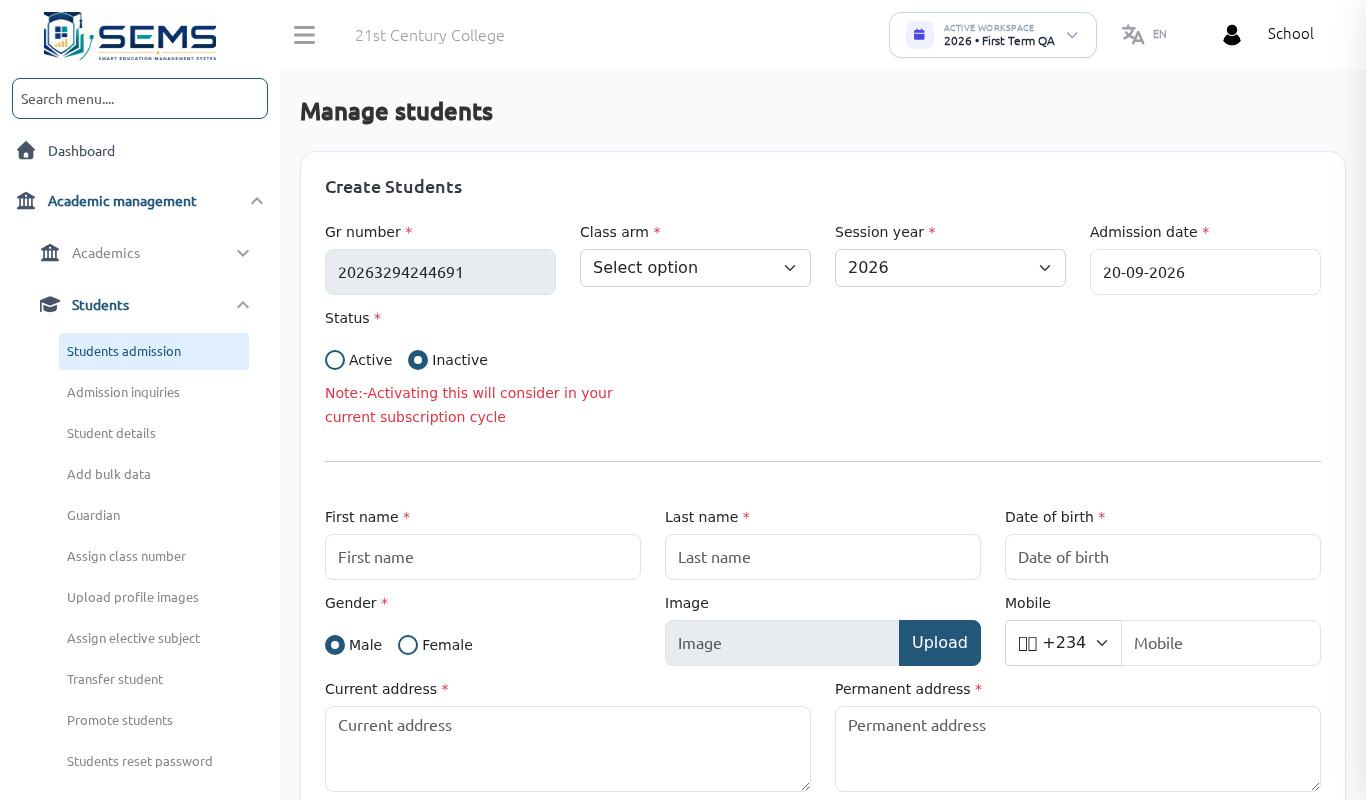 Student admission.
Bulk upload (recommended for a new school)
- Go to Academic Management → Students → Add bulk data.
- Download the CSV template and fill one row per student (name, gender, date of birth, class arm exactly as created, guardian name, guardian email, guardian mobile).
- Upload the file. Rows with errors are listed with the reason; fix those rows and upload only them again.
Tip: upload one class arm at a time — it is easier to check and correct.
Student details and edits
Academic Management → Students → Student details lists all students with filters by class and arm. From here you can:
- View / edit a student (change arm, correct spelling, update guardian).
- Reset password — Students → Students reset password generates a new portal password.
- Deactivate a student who has left without removing history.
Parents and guardians
A guardian account is linked to one or more children. Parents sign in on the school website at Student & Parent Login → Parent with their email or mobile. Siblings appear under one account with a child switcher. Guardians are managed under Academic Management → Students → Guardian.
Transfers and withdrawals
Academic Management → Students → Transfer Student: record a student leaving (transfer certificate details, date and reason). The student becomes inactive and disappears from class lists but remains in reports.
Promotion at the end of the session
Academic Management → Students → Promote Students: choose the class and arm, then the new class and arm for the next session; tick students who are repeating. Do this after the Third Term results are published and the new session is created (see Sessions and terms).
Roll numbers
Academic Management → Students → Assign roll no orders students in each arm (alphabetically or manually). Roll numbers are used on attendance registers and result sheets.
ID cards and certificates
- Certificates → Student ID card: choose the ID card template, select class arm and print.
- Certificates → Certificate template / Certificate assign: design certificates (e.g. prize-giving, completion) and issue them to students.
Admission enquiries from the website
Prospective parents who use the Apply / Enquire form on your school website appear under Academic Management → Students → Admission Inquiries. Mark them as contacted, admitted or declined.
Data protection
Student and parent data belongs to the school and is stored in the school's own database. Only staff with the relevant permissions can see it. SEMS follows the Nigeria Data Protection Regulation (NDPR); see the Privacy Policy linked from your school website.