
Attendance and timetable
Daily student attendance
Attendance is normally marked by the class teacher every morning (see the Teacher manual). As administrator you can mark or correct any arm.
- Go to Timetable & Attendance → Student attendance → Add attendance.
- Choose the class arm and the date.
- All students are shown as Present by default; change absentees to Absent, then Save.
Corrections: open Add attendance again for the same arm and date, change the status and save.
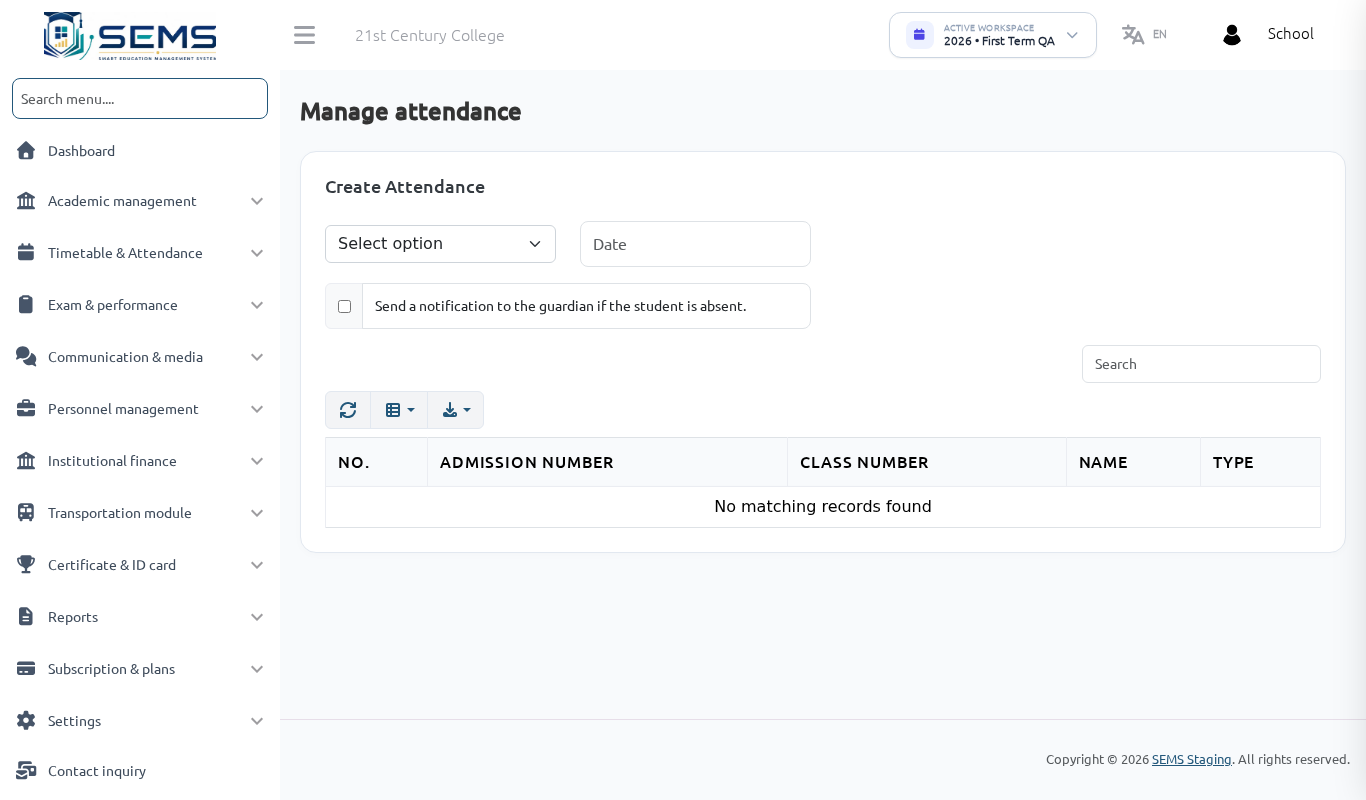 Marking attendance for a class arm.
Reviewing attendance
- View attendance — one arm on one date.
- Month wise — the monthly register for an arm, with totals per student.
- Attendance reports — percentages per student, used on the termly report card (days present, absent and on approved leave).
The dashboard and the SEMS AI "what needs attention" summary flag arms whose attendance has not been marked today.
Student leave
Parents can apply for leave from the portal or app. Applications appear under Timetable & Attendance → Student leave; approve or reject them. Approved leave days count as leave, not absent, on the report card.
Holidays
Timetable & Attendance → Holiday: add public holidays and mid-term breaks. Holidays are excluded from attendance days and shown in the parent calendar.
Class timetable
- Go to Timetable & Attendance → Timetable → Create timetable.
- Choose the class arm, then for each day add periods: subject, teacher, start and end time. Add breaks as periods without a subject.
- Save. The timetable appears in the teacher's panel, the parent/student portal and the app.
Teacher timetable shows one teacher's week across all arms — check it before publishing to catch a teacher scheduled in two arms at the same time (a clash).
Online classes
If your school runs live online classes, Timetable & Attendance → Online class lets you schedule a class with a meeting link for an arm and subject; students see the link in the portal and app.