
The SEMS mobile app
The SEMS app gives parents and students everything in the portal, with push notifications for announcements, homework, results and fees. Teachers and school staff use the same app with their staff login.
Install
- On your Android phone, open your school's website and scroll to Download our app, or visit
https://sems.ng/downloads. - Tap Download SEMS app (APK). If Android asks, allow installation from your browser for this file. A Google Play listing will follow.
- Open the app.
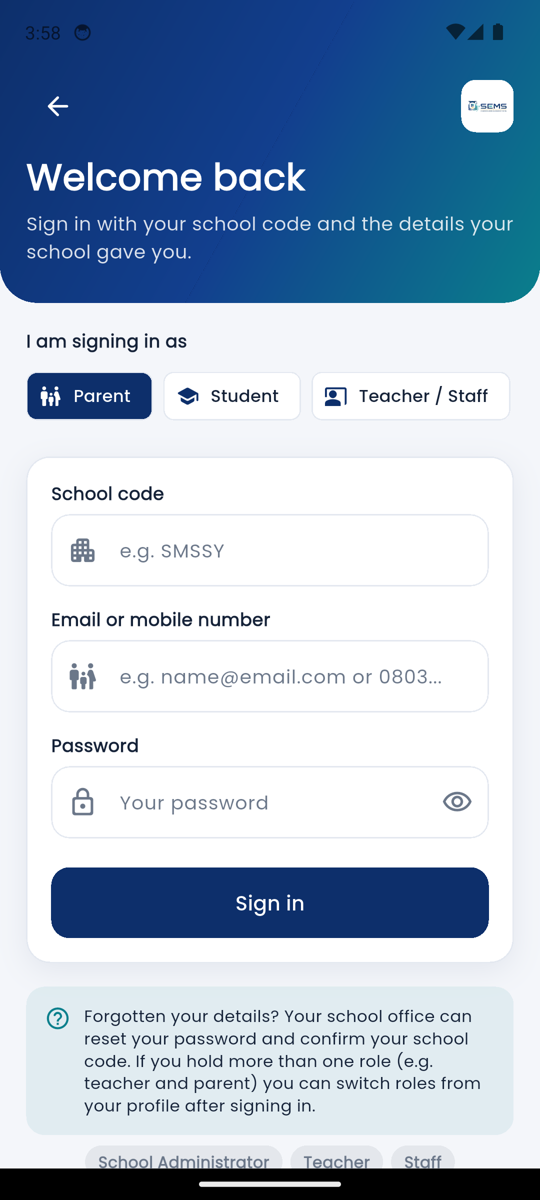 SEMS app: school code and sign-in.
Sign in
- Enter your school code (shown on the school website's Download our app section, or ask the school office).
- Choose Parent or Student.
- Enter the same login as the web portal — parent: email or mobile; student: admission number — and your password.
- Parents with several children: switch child from the top of the home screen.
You stay signed in until you sign out.
What you can do
- Home: today's timetable, attendance, notices, fees due.
- Attendance, Timetable, Assignments (submit by taking a photo), Lessons, Results and report card PDF, Fees with Pay now (Paystack), Announcements, Diary, Profile.
- Notifications arrive even when the app is closed; tap one to open the item.
Data and battery
The app uses little data — pictures and PDFs download only when you open them. Turn off notifications you do not need under Profile → Notifications.
Problems
- "School code not found": check the code with the school; codes are not case-sensitive but must be exact.
- Cannot sign in: try the web portal first — if that works, update the app to the latest version from the download link.
- Not receiving notifications: allow notifications for SEMS in your phone's settings and disable battery optimisation for the app.
iPhone
An iOS app is planned. iPhone users can use the web portal in Safari — tap Share → Add to Home Screen to open it like an app.