
Entering CA and exam marks
Each term the School Administrator creates the assessments (for example CA 1, CA 2, CA 3 and First Term Examination) with total marks per subject. You enter the raw marks; SEMS calculates totals out of 100, grades, positions and averages.
Enter marks for a subject
- Go to Offline Exam → Upload exam marks.
- Choose the assessment (e.g. First Term CA 1), class arm and your subject.
- The student list appears with the total marks shown for the assessment. Type each student's mark. Leave blank for a student who did not sit — tick Absent instead of typing 0.
- Click Save. Saved marks show a green tick; marks above the total are rejected.
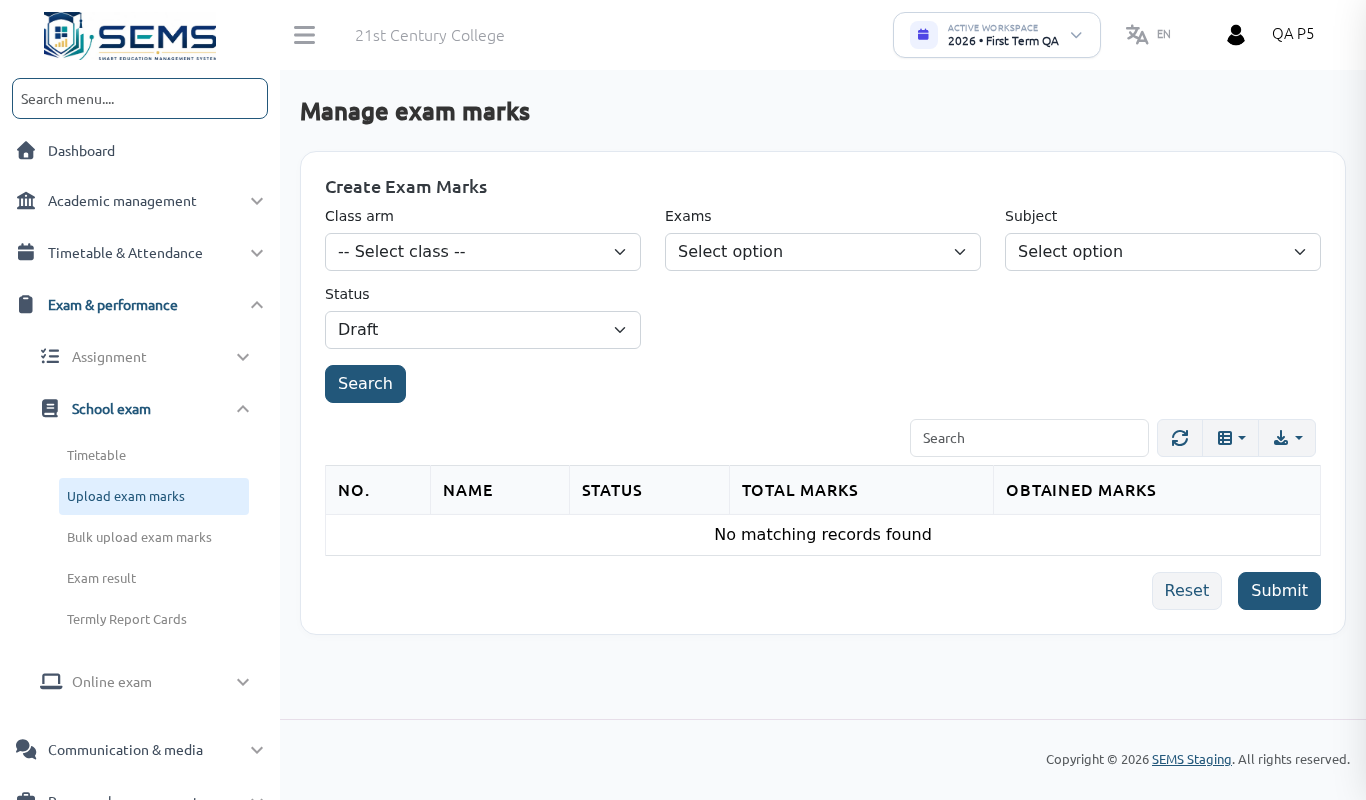 Entering examination marks for one subject.
Repeat for each assessment and each arm you teach. In the app, the same screen is under Marks.
Check your entries
- Exam Result shows the result sheet for the arm with your subject's CA, exam, total and grade — check for typing errors (e.g. 9 instead of 90).
- Track exam marks (visible to administrators) shows which of your subjects still have no marks; the administrator will chase these before the deadline.
Correcting a mark
Open Upload exam marks again for the same assessment, arm and subject, change the mark and save. After results are published, corrections still apply but the administrator may require you to inform them first — follow your school's rule.
Bulk entry from a spreadsheet
If you keep marks in Excel, Offline Exam → Bulk upload exam marks: download the template for the assessment and arm, paste your marks in the Marks column (keep the admission numbers), upload. Errors are listed per row.
Grading
Grades and remarks (A1–F9 or A–F) come from the school's grading scale; you cannot change them per student. Positions are calculated on the total across all subjects and appear on the report card once all subjects are entered.
Online exams
If you set an Online exam (objective test taken in the portal/app), it is marked automatically. Add questions under Online exam → Questions or upload them in bulk; results appear under Online exam → Result.
Deadlines
Your administrator sets the date by which all marks must be in so report cards can be printed. Marks entered late may be excluded from printed report cards for that term.