
Signing in to the portal
The Student & Parent portal is where you see attendance, homework, results, report cards, fees and school notices. It is part of your school's website.
Where to sign in
- Open your school's website (e.g.
https://<school>.schoolsite.ngor the school's own domain). - Click Student & Parent Login in the top menu. (Staff Login is for teachers only.)
Or install the SEMS app — see The SEMS mobile app.
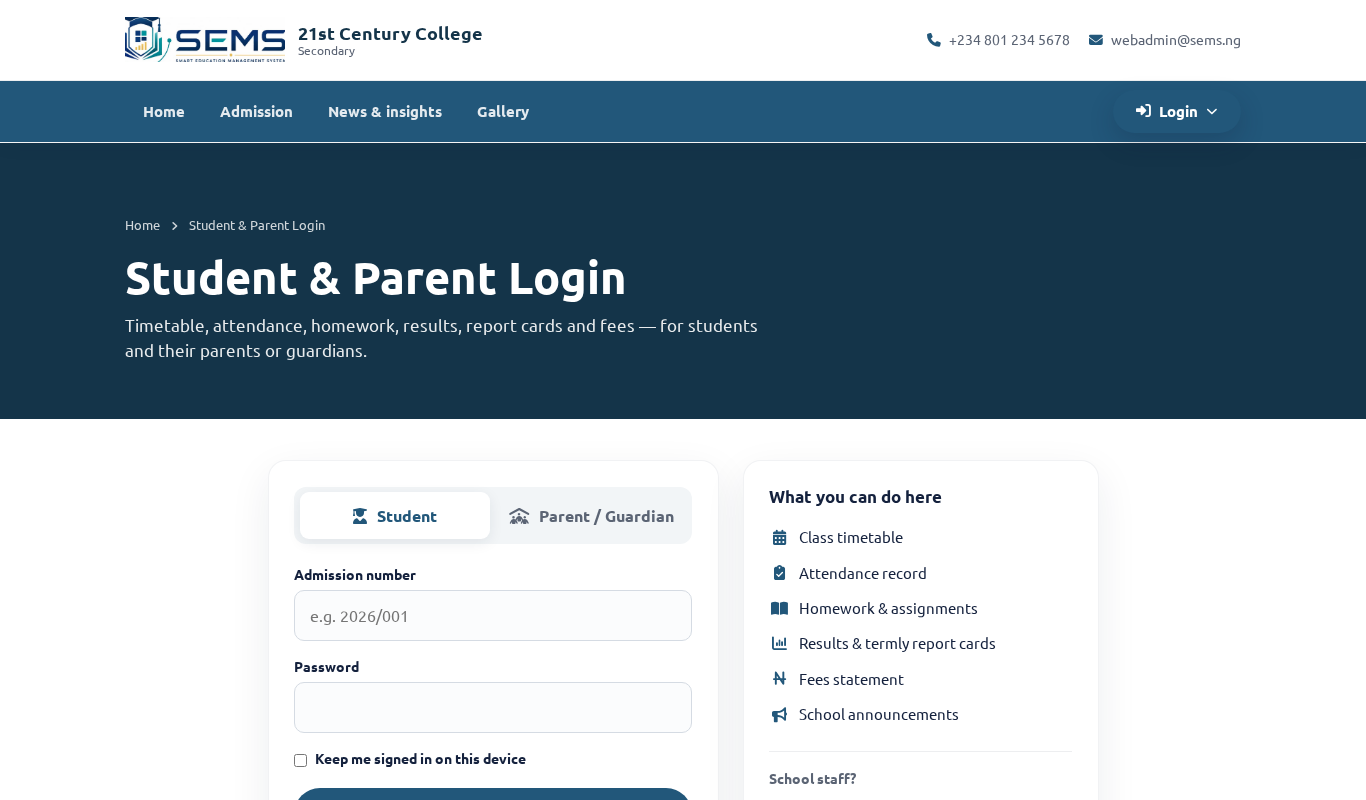 Student & Parent Login with Student and Parent tabs.
Student login
Choose the Student tab and enter:
- Admission number — printed on the admission letter and the ID card (e.g.
SCH/2026/0042). - Password — given to your parent at admission.
Parent / guardian login
Choose the Parent tab and enter:
- Email address or mobile number — the one you gave the school.
- Password — sent to your email at admission or given to you by the school office.
More than one child
If you have several children in the school, they are all under one parent account. Use the child switcher at the top of the page to move between them; everything (attendance, results, fees) shows for the selected child.
Forgot your password?
- Click Forgot password on the login page and follow the email instructions (parents with an email on record).
- Otherwise contact the school office — the administrator can set a new password for you or your child within minutes.
Change your password
After signing in, go to Profile → Change password. Choose a password you do not use elsewhere and do not share it with your child's classmates.
Signing out
Click Sign out (top-right). Always sign out on a shared or public computer.
Problems signing in
- Make sure you are on Student & Parent Login, not Staff Login.
- Check the email/mobile you are using is the one the school has on file.
- The password is case-sensitive.
- Still stuck? Contact the school office.