
Lessons, topics and assignments
Lessons and topics (scheme of work)
- Go to Lesson → Add lesson, choose the class arm and subject, give the lesson a name (e.g. "Week 3 — Fractions") and a description.
- Under Topic → Add topic, add the topics for that lesson and attach files: lesson notes (PDF/Word), slides, YouTube links.
- Students and parents see lessons and materials in the portal and app under Lessons.
Where SEMS AI is enabled, ask the Teacher Copilot to draft a lesson plan ("Lesson plan on photosynthesis for JSS 2, 40 minutes") and paste it in after editing.
Set an assignment (homework)
- Go to Assignment → Add assignment.
- Choose class arm and subject; enter the title, instructions, due date and time, and marks (if graded).
- Attach a worksheet if needed, and tick Allow re-submission if students may resubmit.
- Save. Students and parents are notified immediately.
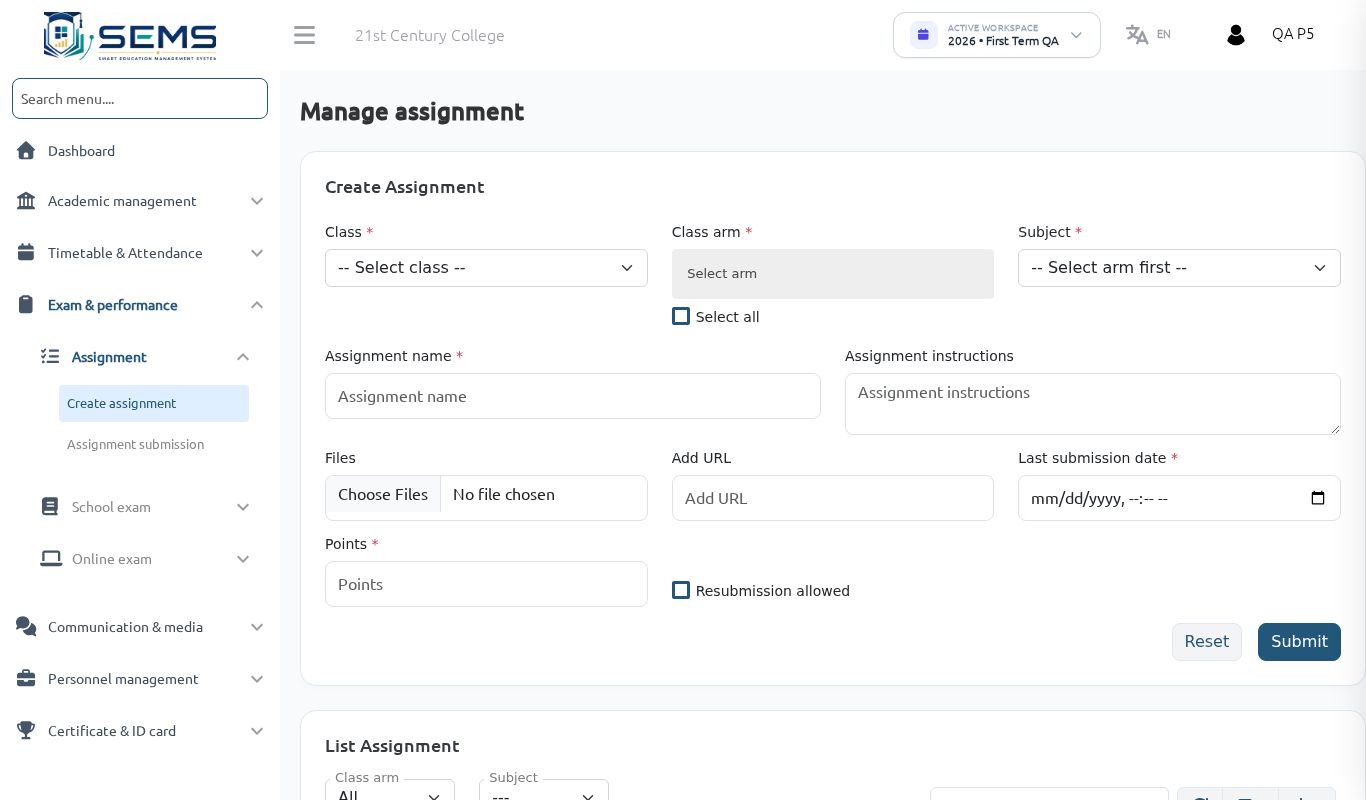 Setting homework for an arm.
Mark submissions
- Go to Assignment → Submissions (or open the assignment).
- Each student shows Submitted, Late or Not submitted. Open a submission to view the file or text.
- Enter marks and feedback, then Accept (or Reject with a reason to request a redo).
- Marks are shown to the student and parent. If your school counts assignments toward CA, the administrator maps them in the exam set-up.
Tips
- Give at least two days for homework so parents without daily internet can help.
- Use clear titles with the subject and week: "Mathematics — Week 5 — Fractions worksheet".
- Students who do not have devices can submit on paper; record the mark against Not submitted using Enter mark manually.